
Knowledge Center Guide
Getting Started and Navigation
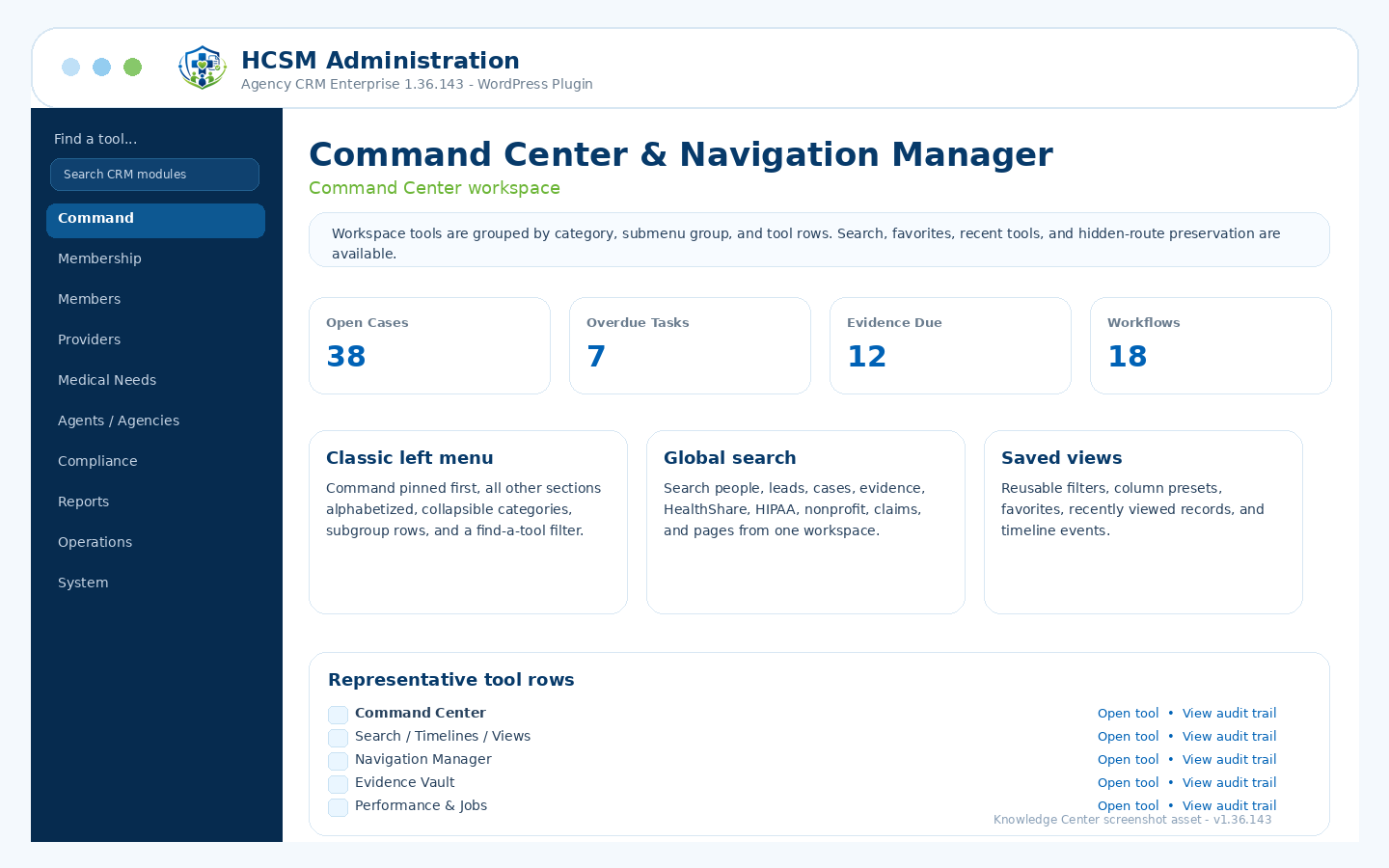
Command Center, classic left menu, global search, timelines, and saved views.
Admin path: HCSM CRM → Command Center / Navigation Manager
How it works
Workflow overview
- Open the Command Center to see daily KPIs, alerts, cases, evidence due, and workflow shortcuts.
- Use the classic left menu to expand categories and subgroup rows only when needed.
- Use Find a Tool, global search, saved views, favorites, and recent items to jump to records and admin screens.
- Use Navigation Manager to control menu mode, role views, hidden-route preservation, and menu ordering.
Included controls
What administrators can manage
Use these controls as the starting checklist for this module. The exact visible tools can vary by package branch, permissions, feature toggles, and production/demo role settings.
Command-first alphabetical section orderResizable left WordPress admin menuCollapsible parent sections and subgroup rowsGlobal search across enabled CRM sourcesSaved views, column presets, favorites, and record timelines
These are administrative workflow tools, not legal, clinical, payer, insurance, payment-processing, cybersecurity, IRS, state, HCSM regulatory, or HIPAA certification.
Related guides